Step-by-step guide
Get your practice running on PranaDesk
Follow steps 1 to 6 once, in about 15 minutes, and clients can start booking you. The rest explains your everyday tools. Words in bold are exactly what you see on screen.
1
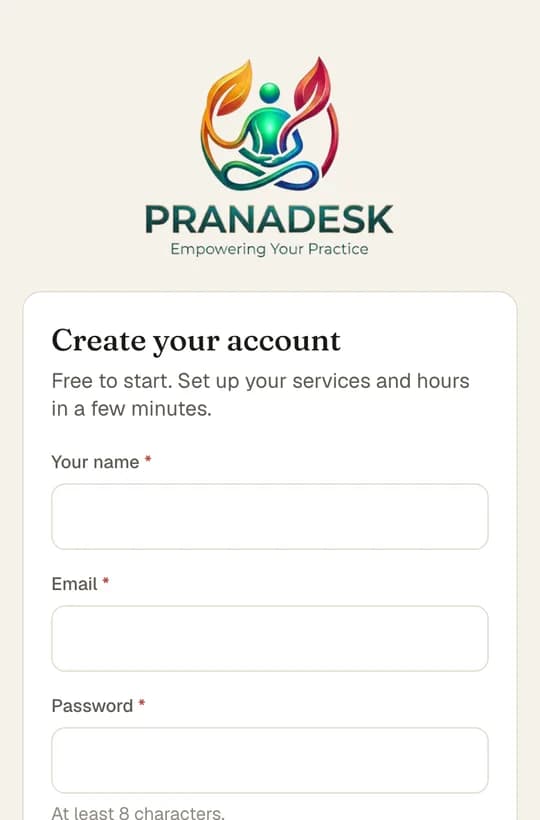
Create your account
- Go to pranadesk.app and tap Get started.
- Enter Your name, Email and a Password of at least 8 characters.
- Tap Create account. You go straight to the setup screen.
Forgot your password later? On the sign-in page tap Forgot password? and we email you a link that works for 1 hour.
2
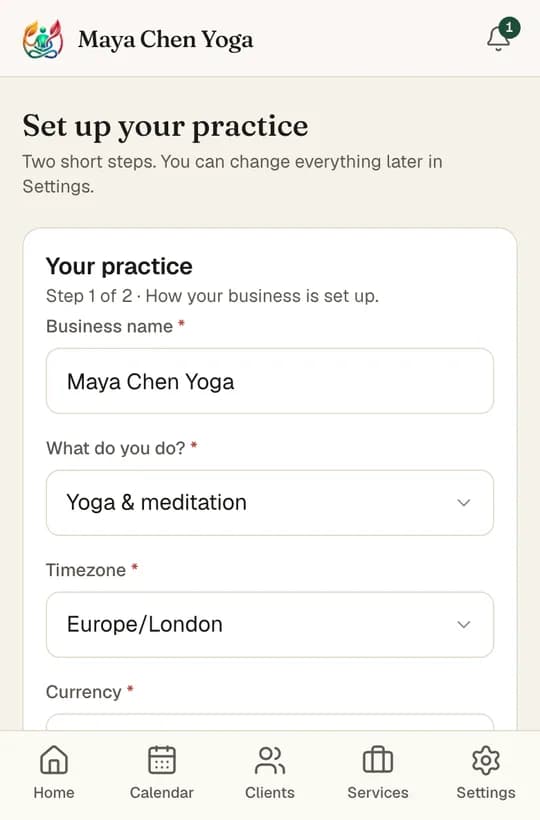
Set up your practice
- Business name and What do you do? (for example Yoga & meditation).
- Timezone and Currency. All times and prices use these.
- Contact email (shown to clients) and, if you like, a phone number.
- Choose your Booking link. The hint underneath shows your real address as you type, for example pranadesk.app/book/maya-yoga.
- Add Your name on the booking page and an optional one-line headline, then tap Finish setup.
Pick a short booking link you are happy to print on cards. If you change it later, the old link stops working.
3
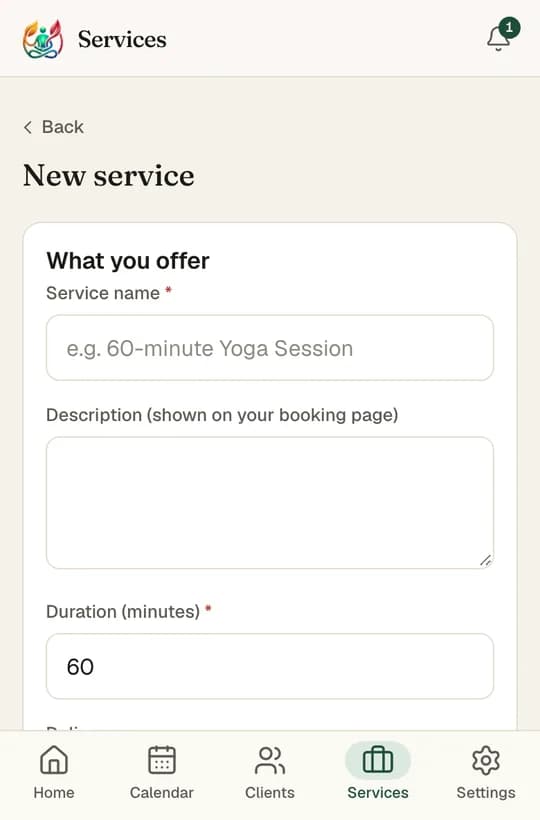
Add your services
- Open Services and tap Add service.
- Give it a Service name and a short Description. Clients see both.
- Set the Duration (minutes) and the Price. Enter 0 for a free service.
- Choose Delivery: Online, In person (add the Location) or Online or in person.
- Under Scheduling, set the Booking interval and Buffer after (explained below), then tap Create service.
Booking interval decides which start times clients see. Every 60 minutes offers 9:00, 10:00, 11:00. Every 30 minutes offers 9:00, 9:30, 10:00 and gives more choice, but can leave half-hour gaps in your day.
Buffer after is a rest after each session of this service. With 15 minutes, a 9:00–10:00 session keeps you free until 10:15 for notes or tidying.
To stop offering a service, tap Archive. Existing appointments are kept and you can Restore it any time.
A good start is a booking interval equal to your usual session length, and a 10–15 minute buffer.
4
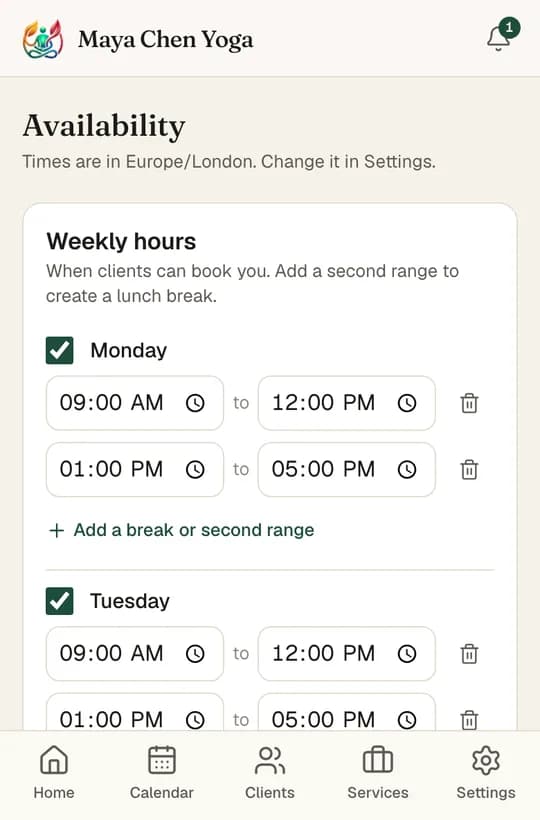
Set your working hours and days off
- Open Settings, then Availability. In the phone app: Settings → Weekly hours.
- Tick each day you work and set the times, for example 09:00 to 17:00.
- For a lunch break, tap Add a break or second range: 09:00–12:00 and 13:00–17:00.
- Tap Save weekly hours.
- For holidays or training days, use Days off & breaks: choose the dates (or untick Whole day(s) for a few hours), add a reason and tap Block this time.
Days off never cancel bookings you already have. Move or cancel those yourself first.
5
Choose your booking rules
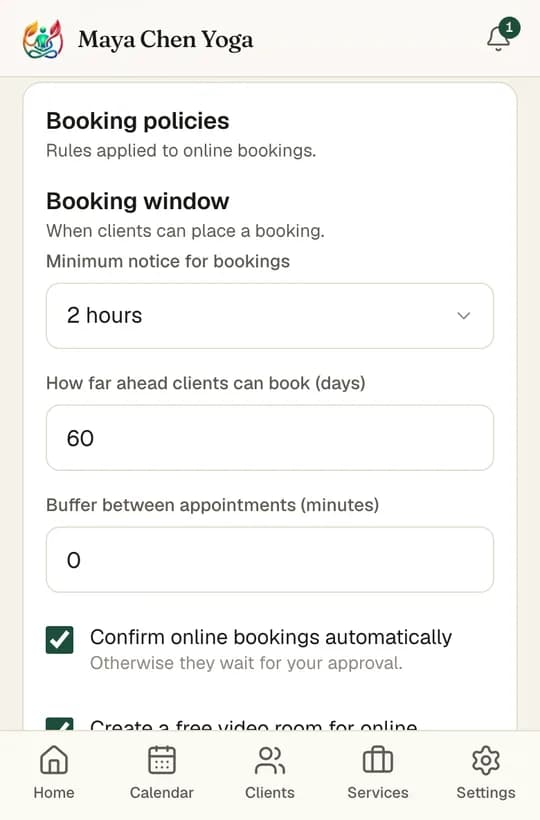
- Minimum notice for bookings: how soon a client can book, for example 2 hours or 1 day ahead.
- How far ahead clients can book (days): for example 60.
- Buffer between appointments (minutes): a break after every session, on top of any service buffer.
- Confirm online bookings automatically: leave on to accept bookings straight away, or turn off to approve each one yourself.
- Create a free video room for online sessions: every online booking gets its own video link (see below).
- Free cancellation up to (hours before) and your Cancellation policy text. Clients read these before booking.
- Require payment when booking online: clients pay to secure paid sessions. Then tap Save policies.
Free video rooms. Online sessions get a private link such as meet.jit.si/PranaDesk-…, sent in the client's confirmation and reminder. Open it a few minutes early from the appointment (Join call). The first time, Jitsi asks you to sign in once with Google, GitHub or Facebook. Clients just click the link: no app or account needed.
Prefer Zoom or Google Meet? Paste your own link in the appointment's Meeting link and it is used instead.
6
Share your booking link
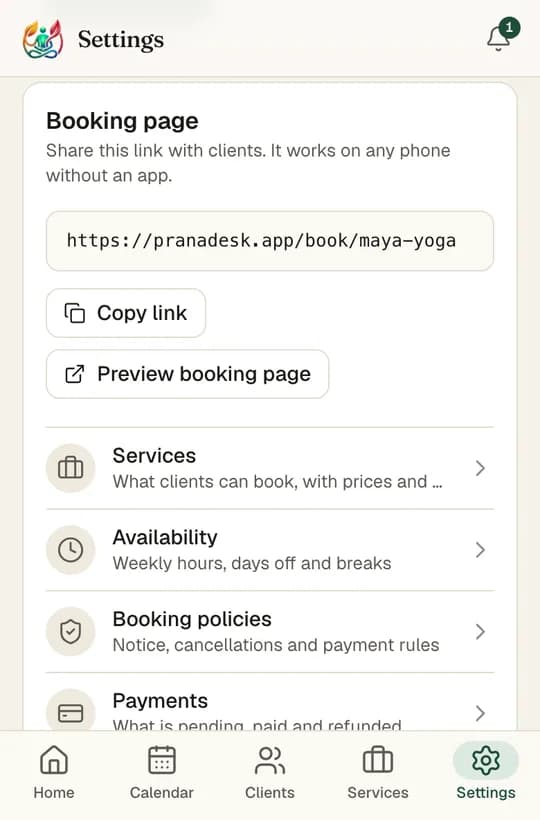
- On Home, tap Share booking link to copy it. Or open Settings → Booking page → Copy link.
- Tap Preview booking page to see exactly what clients see.
- Paste the link in your Instagram bio, WhatsApp status and messages, Google Business profile, website and email signature.
- Under Public profile, add a few sentences in About you. Turn off Booking page is public to pause bookings while you are away.
Sending your link to clients who usually message you to book saves you both the back-and-forth.
7
What your clients see
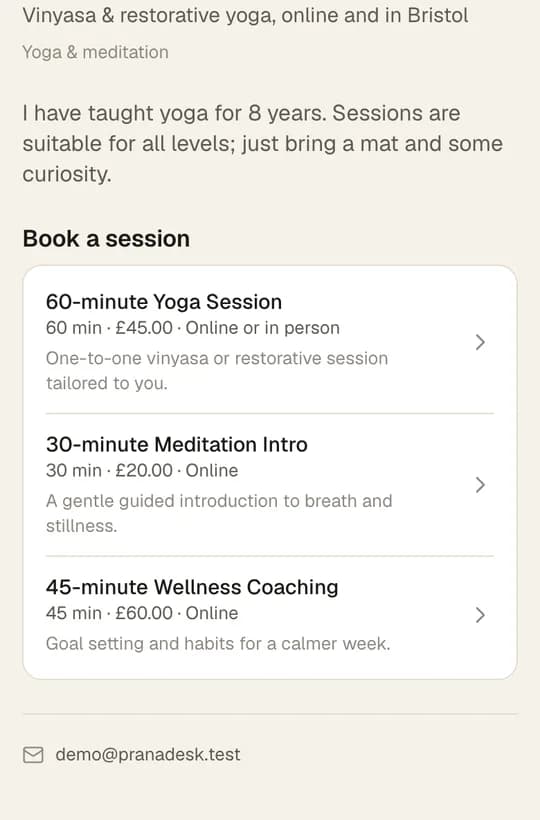
- They open your link and pick a service under Book a session.
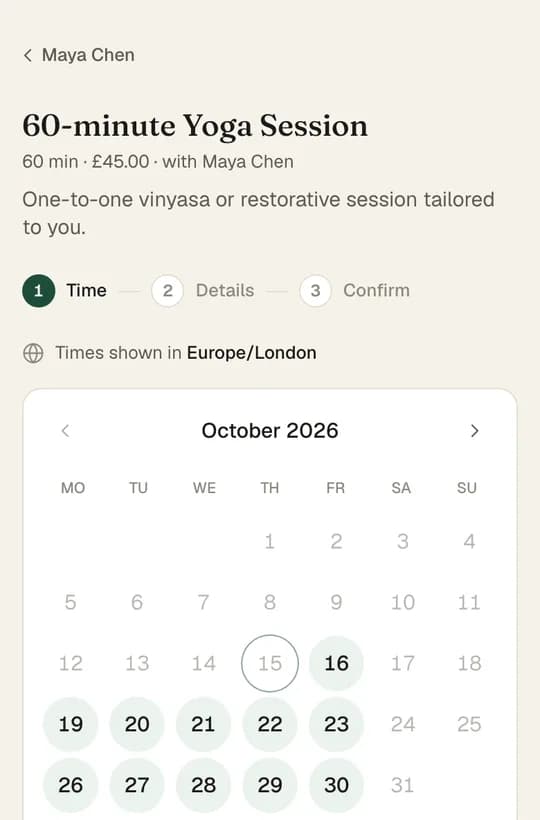
- Time: they choose a day and a free time. Clients abroad can tap Show in my timezone.
- Details: name, email, optional phone and a message for you.
- Confirm: they check the summary and tap Confirm booking. If you asked for payment, they pay next.
- They receive a confirmation email with the time, the video link or address, and a personal link to Change time, Cancel booking or Add to calendar, within your cancellation window.
Before the session they get a reminder email. You choose when in Settings → Notifications.
8
Your day: Home and Calendar
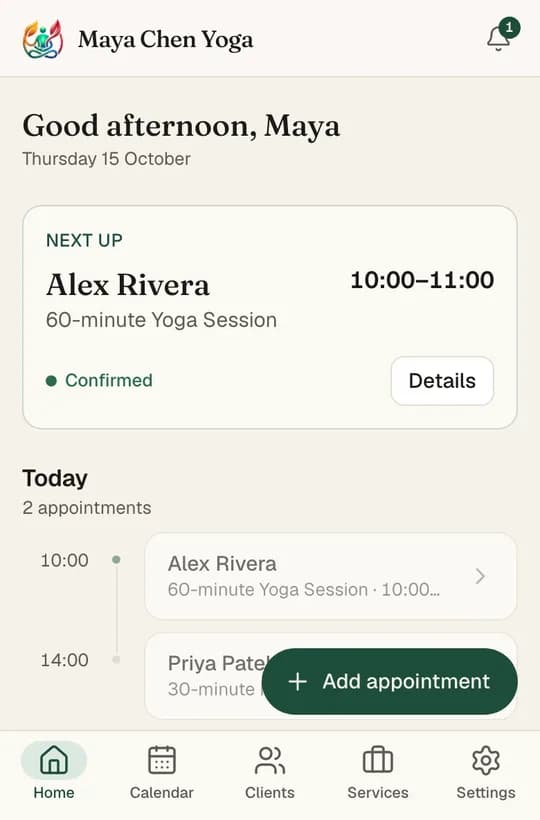
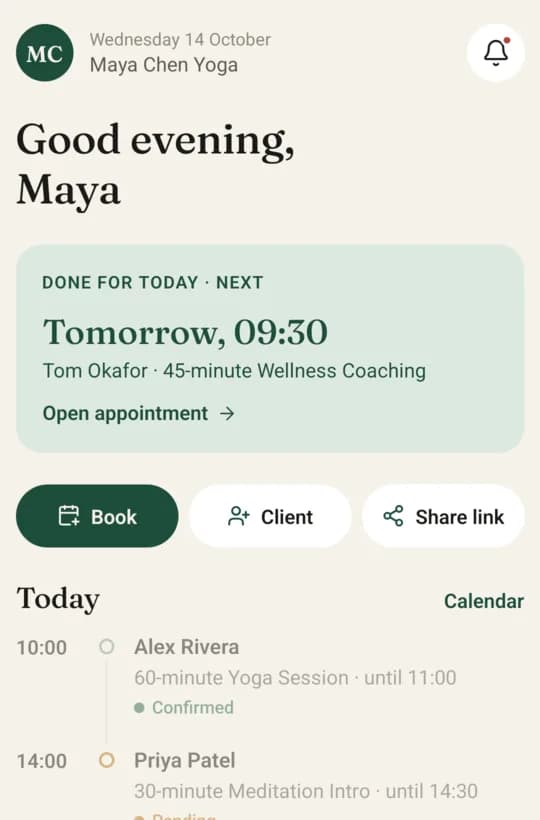
- Next up shows your next session, with Join call for online ones.
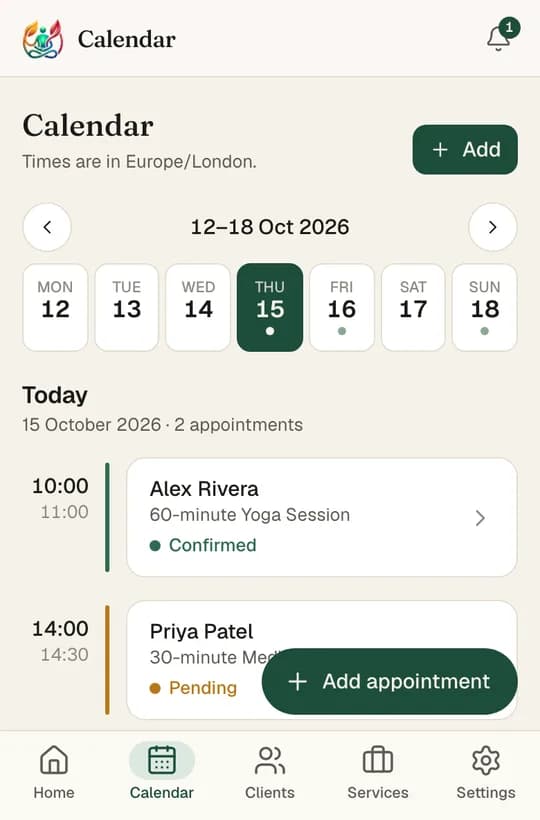
- Today lists today's sessions in order. Tap one to open it.
- Pending payments and Next 7 days give a quick view of money owed and the week ahead.
- In Calendar, move between weeks with the arrows and tap a day to see its appointments. The phone app also has a Month view.
- Notifications (the bell) tells you about new bookings, changes, cancellations and payments.
New online bookings show as Pending if you turned off automatic confirmation. Open them and tap Confirm.
9
Book an appointment yourself
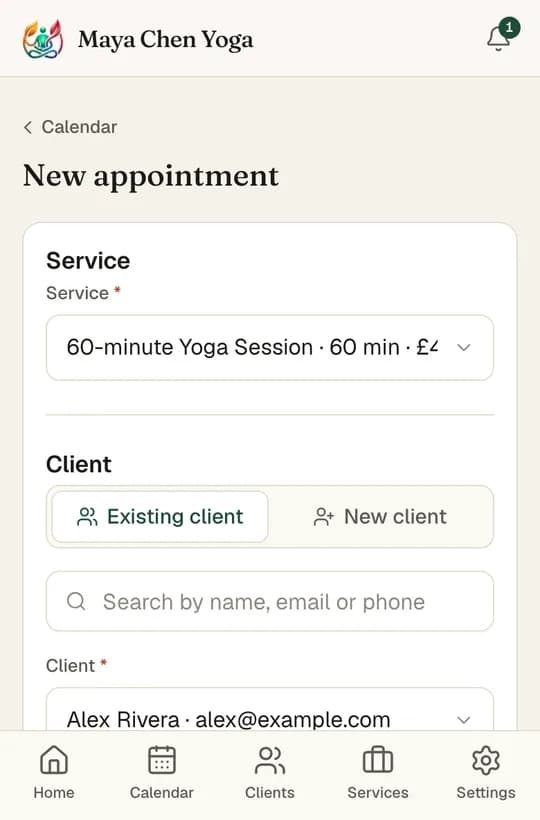
- Tap Add appointment on Home or Calendar (Book in the phone app).
- Choose the Service.
- Pick an Existing client or tap New client and enter their name and email.
- Choose a day and a time. To book outside your usual hours, tick Custom time. Double bookings are still blocked.
- Under Details, choose Confirmed or Pending and Online or In person. Leave Meeting link empty for a free video room. Add Private notes if you like.
- Tap Create appointment. The client is emailed a confirmation if they have an email address.
10
Manage an appointment
- Confirm a pending booking. The client gets a confirmation email.
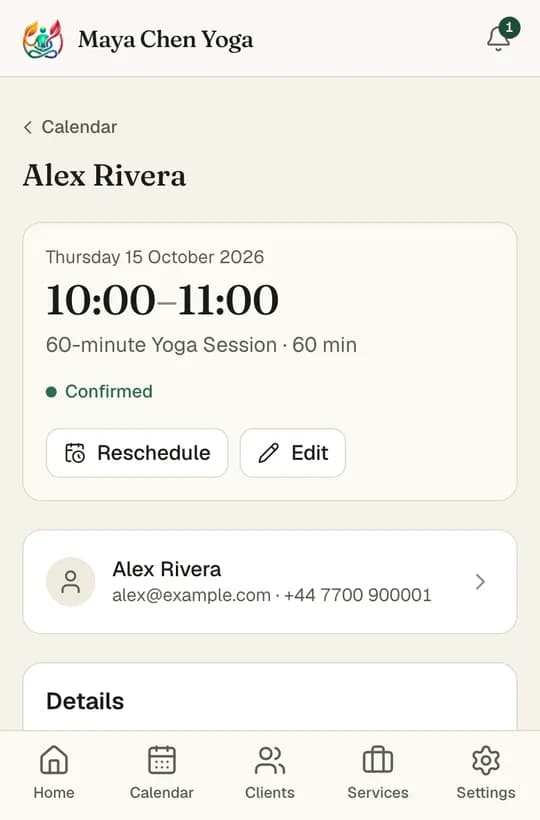
- Reschedule: pick a new time and keep Notify the client by email ticked.
- Edit: change online or in person, the meeting link, the location or your private notes. A new meeting link is emailed to the client automatically.
- Under Payment, tap Mark as paid for cash or bank transfers, or Refund.
- After the session, tap Mark completed or Mark no-show.
- Cancel appointment frees the time again. Add a reason and choose whether to email the client.
11
Your clients
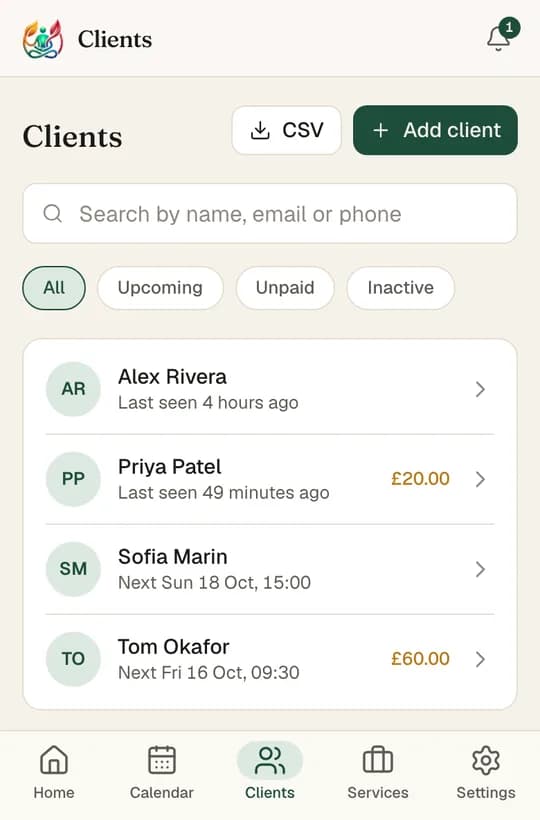
- Open Clients. Search by name, email or phone, or filter Upcoming, Unpaid or Inactive.
- Tap Add client to add someone by hand. An email address is needed for confirmations and reminders.
- Open a client to see their appointments, what they have paid, and your Notes. Tap Book appointment to book them again.
- Tap Export CSV (on the website) for a spreadsheet of all clients.
Notes are for general preferences and goals. Keep clinical records in the system your professional body recommends.
12
Payments
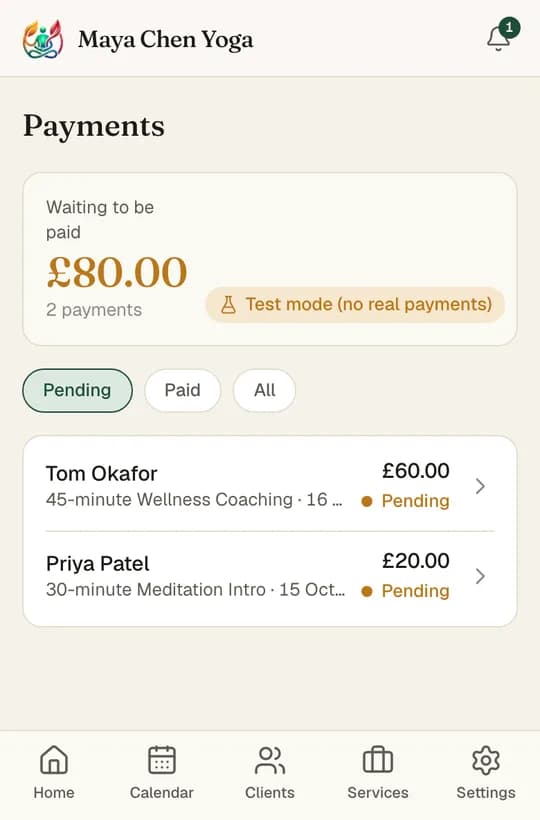
- Open Settings → Payments, or tap Pending payments on Home.
- Switch between Pending, Paid and All.
- Tap a payment to open its appointment, then Mark as paid (cash, UPI or bank transfer) or Refund.
- To have clients pay online when they book, turn on Require payment when booking online in Booking policies. They pay by card and get a receipt by email.
A Test mode badge means online card payments are not switched on yet. No real money is taken.
13
Emails and reminders
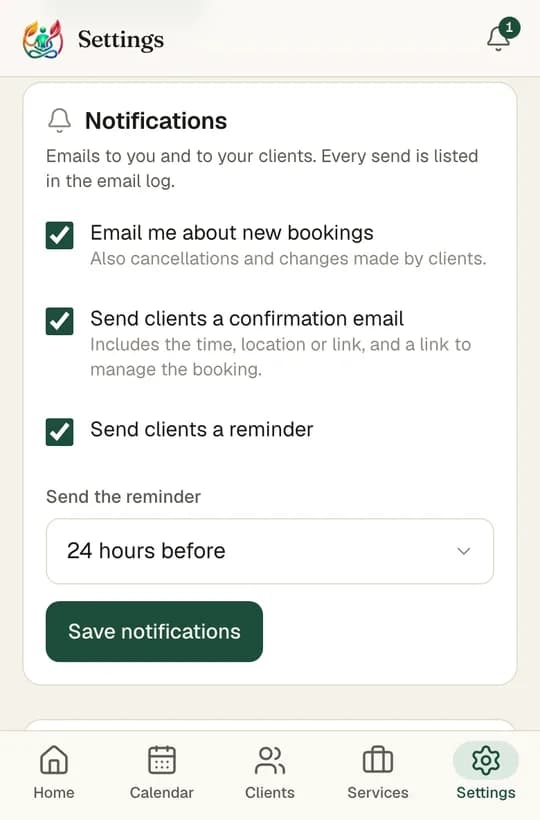
- Open Settings → Notifications.
- Send clients a confirmation email: sent when they book, with their manage link.
- Send clients a reminder and choose when: 2, 12, 24 or 48 hours before.
- Email me about new bookings: you hear about new bookings, changes and cancellations.
- Tap Save notifications. Every email sent is listed in the Email log on the Notifications page.
A client says they got nothing? Check the Email log first, then ask them to look in spam or promotions.
14
Use PranaDesk on your phone
- On any phone, open pranadesk.app, sign in, and add it to your home screen (Share → Add to Home Screen on iPhone, menu → Add to Home screen on Android).
- Android app: install the PranaDesk app file you received, then sign in with the same email and password.
- iPhone app: coming soon on the App Store. Until then, use the browser.
15
Your data and account
- Settings → Account → Export all data downloads everything as one file.
- On a client's page, Export this client's data or Delete client if they ask you to.
- Change password signs you out on other devices. Sign out other devices does the same without a new password.
- Delete account closes your practice and removes your clients' personal details. This cannot be undone.